



Native-quality visuals with high frame rates and low latency for a smooth experience.

Massive high-speed nodes | Stable and continuously available | One-click quick connect
We have more than 10,000 nodes in 184 countries and regions, as well as globally optimized high-speed routes

A global high-speed network built for streaming, with high-speed video channels that unlock global content and eliminate buffering.
Download now →Esports-grade network optimization that eliminates high ping for a silky-smooth gaming experience.
Native-quality visuals with high frame rates and low latency for a smooth experience.
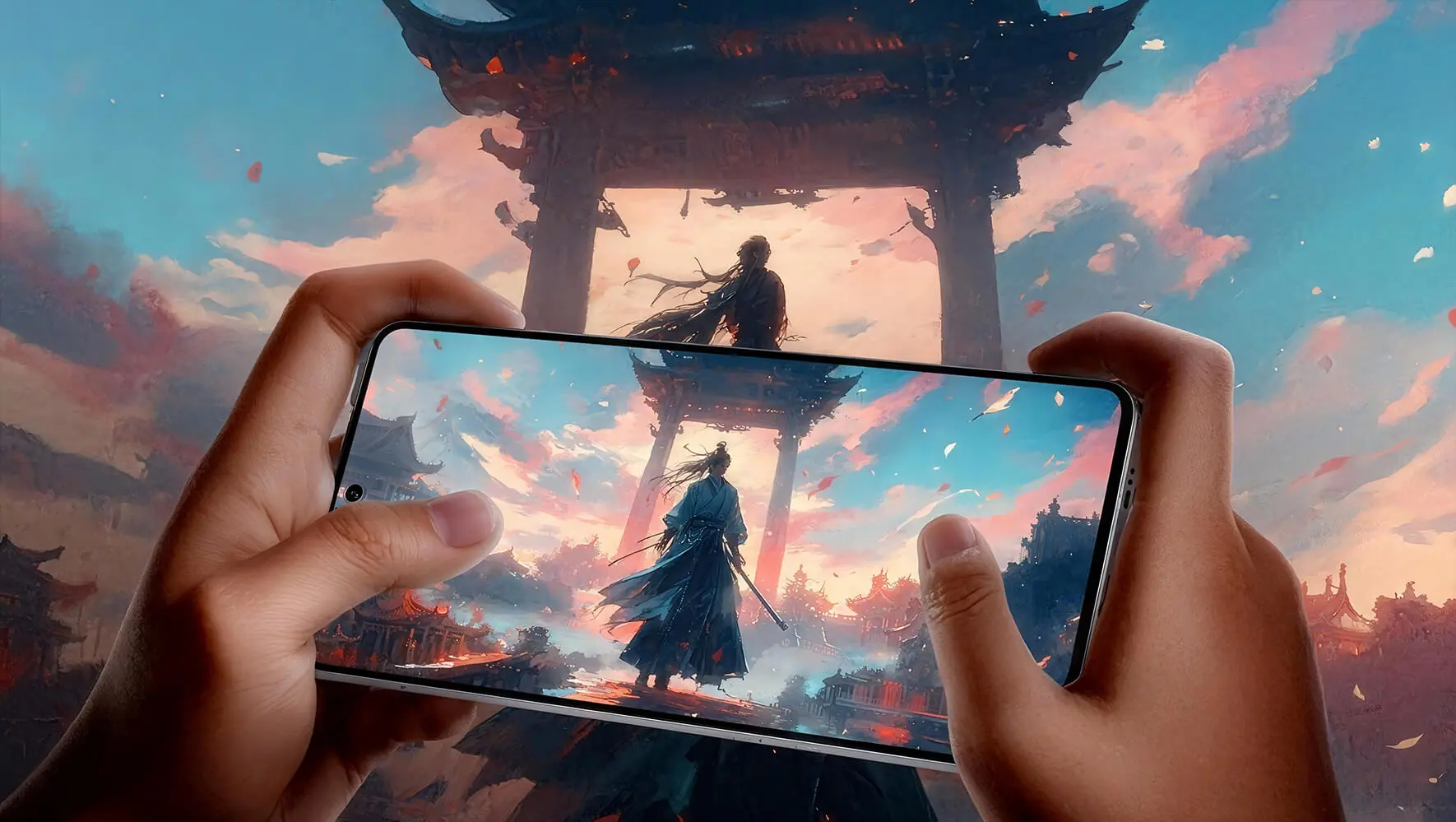
Balances higher image quality, higher frame rates, and a stable connection experience.
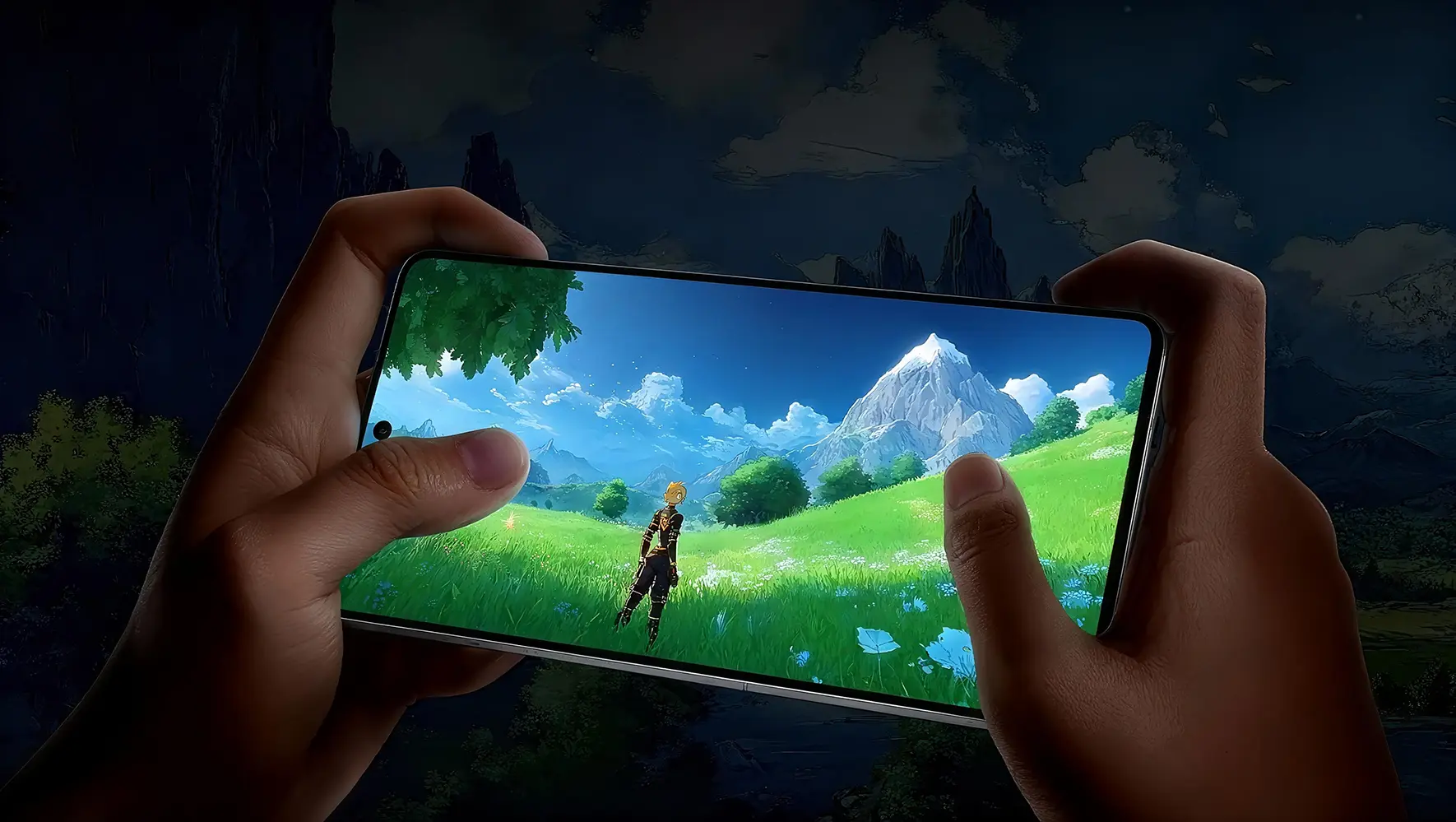
Sustained smoothness, refined stability, and compatibility across different gaming platforms.
Smart connection, device switching, and privacy settings make common features clear at a glance.

Choose the most suitable connection method based on the current environment to reduce repeated setup.

Covers common device platforms such as computers, phones, and tablets.

Protects your everyday connection process with clear security mechanisms.

Focuses on common steps, so new users can get started quickly.

Provides a continuous, clear user experience across different network environments.
Get started quickly with intelligent route selection and one-tap connection; when you need to switch devices, simply choose the corresponding client.
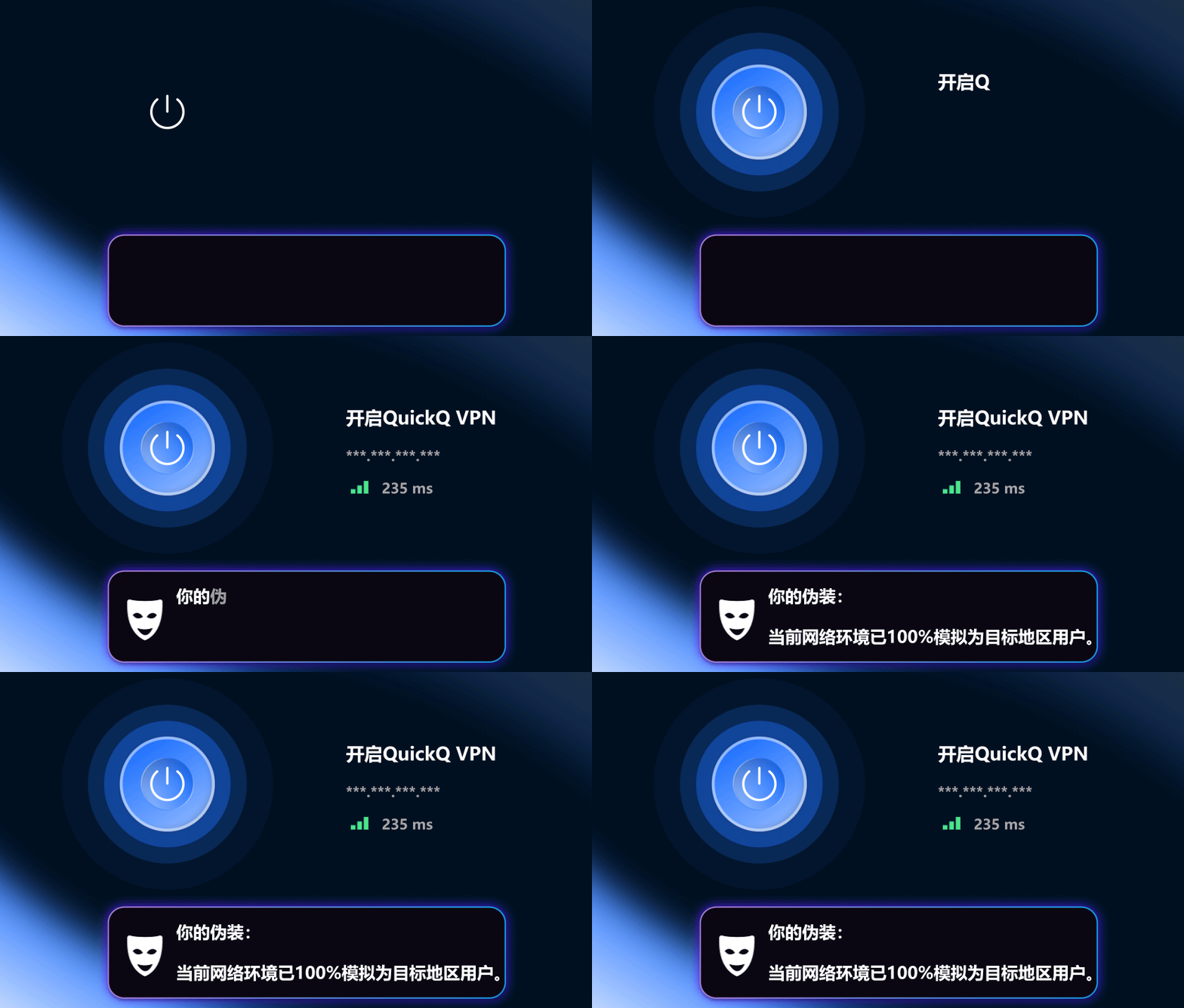
Enjoy a familiar connection experience on computers, phones, and tablets by selecting the client that matches your device's system.
Common questions about device selection, download, installation, and getting started.
Supports common platforms including Windows, Android, iOS, macOS, and Linux. Please choose the version that fits your device.
Open the downloaded installer and follow the wizard. On mobile devices, install according to the system prompts.
Open the client, complete the initial setup as prompted, select a server, and connect.
Go to the download center on this site and select the version that matches your device's operating system.
Go to the download center and choose the client and installation entry based on your device's system.
Open Download CenterWhether on a phone, computer, or tablet, QuickQ VPN provides a clear path to get started. You can quickly connect, switch servers, or adjust privacy options based on your common scenarios, making every browsing session smoother.
After installation, open QuickQ, select the auto-recommended server, and tap Connect. Once the status changes to Connected, you're ready to go.
On desktop, you can switch between different servers based on work, video, or download needs. Connection history keeps your recent selections for quick reconnection.
Tablets and smart TVs can be authorized with the same account, keeping basic connection settings consistent and reducing repetitive setup steps.
You can first try switching to a node that is closer or has a lower load, and close background applications that use a lot of bandwidth. If the problem persists, reconnect to the current node so the client can select a better link again.
After logging in with the same account, QuickQ will sync basic preferences. Different devices can still adjust nodes individually according to network conditions, but frequently used nodes and connection methods will remain consistent, reducing repeated configuration.


 Windows
 Android
 iPhone / iPad
 macOS
macOS Linux
Linux